Top 5 FAQ
-
If the coffee button on your Vertuo Next blinks red or orange, please follow these steps:
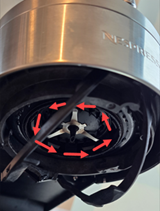
- Check Rotor: Ensure it spins freely and is clean.
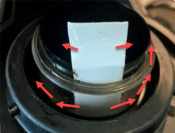
- Clean Barcode Reader: Use a piece of paper, inserting it 5 cm down to clean.
- Inspect Water Tank and Capsule: Ensure the tank is full and the capsule container is empty.
- Check Capsule: Ensure the capsule is fresh, undamaged, and the barcode is readable.
- Ensure Machine is Locked: Confirm that the machine is fully in the locked position.
Now, attempt to brew.
If the issue persists:
- Run Cleaning Cycle: Fill the tank, turn on the machine, lock the head, place a 1L container under the outlet, and press the coffee button three times quickly. Wait for the steady light to confirm completion.
- Power Cycle: Unplug for 30 seconds, then plug back in.
- Factory Reset: Open machine head, empty capsules, close head (unlocked), and press coffee button 5 times within 3 seconds. Button will blink orange 5 times to confirm.
For further troubleshooting of your Vertuo Next – visit this page!
Did this answer your question? If not, contact us, we will be pleased to help you. You may also call us on 80 909 600 Mon-Fri 08:00-18:00 and Saturday 09:00-18:00, Sunday/bank holiday-closed.
Rate this answer - Check Rotor: Ensure it spins freely and is clean.
-
In Denmark, we recommend that the machine be descaled regularly using a double dosage of descaling liquid (after every 200 capsules), as instructed in your machine manual or when the machine indicates that it is time for descaling.
Please note that descaling may need to be performed more frequently than the alarm indicates due to the high levels of lime scale in Denmark. The machine will display the following symptoms when it is time to descale:- Poor flow
- Cold coffee / bad taste
- Squeaking sound
We highly recommend that you ensure you have set the correct water hardness on your machine. Additionally, please keep in mind that machines with any type of steampipe will require descaling more often (after 30-40 minutes of using the steamer).
To enhance the quality of your water and naturally reduce lime scale buildup, we recommend using a filter solution, as for example a Brita filter in conjunction with our descaling liquid. The Brita filter effectively reduces lime scale and provides fresh-tasting water, complementing the descaling process.
The descaling process prevents lime scale buildup in the machine, which can affect, taste, temperature and decrease water flow.- Use the Nespresso descaling kit with lactic acid for safe and effective cleaning without harm.
- Important: Descalers containing citric acid and vinegar may harm the machine and void the warranty.
Did this answer your question? If not, contact us, we will be pleased to help you. You may also call us on 80 909 600 Mon-Fri 08:00-18:00 and Saturday 09:00-18:00, Sunday/bank holiday-closed.
Rate this answer -
The brewing temperature inside a Nespressomachine is around 83-86° for Original and 78° ± 5° for Vertuo.
This ensures optimal extraction of the coffee aromas without burning the coffee. It aslo makes sure that you are able to enjoy your coffee rgiht away.
Nespresso coffee is meant to be enjoyed immediately after brewing, which is why it keeps a lower temperature than for example, filter coffee.If you find the coffee not hot enough, there are a few things to think about:
- Preheat the cup with hot water. A cold coffee cup cools the coffee quickly.
- Do you use milk in the coffee? Keep in mind that cold milk cools the coffee as well, please warm the milk before - if you have an aeroccino or milk foam function on your Nespresso machine - both heat and foam the milk with a simple push of a button.
- Using spoon in your coffee can also help to cool down quickly.
If it was long time since you descaled your machine, this could also affect the brewing temperature. Descaling is easily purchased by us and you will find instructions for descaling on our website.
Sometimes the pressure in the machine decreases after a time of use, and this may an effect on the temperature. By brewing approx. 5 lungo cups with only water (no capsule) will help the machine to build the preassure again. Then the pressure is rebuilt and machine will heat the water properly.
If none of the above helps, please do not hesitate to contact us at 80 909 600 (weekdays 08:00-18:00 and Saturdays 09:00-18:00, Sundays and bank holidays - closed) and we will help you with further troubleshooting.
Since the exact brew temperature cannot be measured with a regular thermometer, there are equipment in our boutiques to help you, if the above instructions and tips do not help.
Did this answer your question? If not, contact us, we will be pleased to help you. You may also call us on 80 909 600 Mon-Fri 08:00-18:00 and Saturday 09:00-18:00, Sunday/bank holiday-closed.
Rate this answer -
All our Vertuo coffee machines are equipped with a descaling alert. Although the alert is described as half red and half green in your machine's user manual, the green light can appear to be yellow under certain conditions.
We recommend descaling your machine every 3 months or after 300 capsules, whichever comes first. Over time, water used during brewing may cause internal mineral build up, which can affect the flow, temperature and overall performance of your machine.
You may purchase a descaling kit online, by phone, or in any Nespresso Boutique. One kit contains enough descaling solution for two descalings.
For further troubleshooting of your Vertuo Next – visit this page!
Did this answer your question? If not, contact us, we will be pleased to help you. You may also call us on 80 909 600 Mon-Fri 08:00-18:00 and Saturday 09:00-18:00, Sunday/bank holiday-closed.
Rate this answer -
We recommend that you try some concrete solutions. Many issues can often be resolved by performing a factory reset, following a cleaning program, or conducting descaling.
We direct you to our Machine Assistance Page, where you can find instructional videos and FAQs specific to your problem. You can easily access these resources by clicking here.
If you cannot find a solution or need assistance ordering spare parts, please contact our support team at 80 909 600, available on weekdays from 08:00 to 18:00 and on Saturdays from 09:00 to 18:00; we are closed on Sundays and bank holidays.
If your coffee machine is still under warranty and further assistance is needed, you may be referred to one of our two Boutiques for additional troubleshooting:Please ensure that your machine is clean and has the original plug, as the Boutique will not accept it for troubleshooting otherwise. When you leave your machine at a Boutique, you will receive a receipt with an estimated repair time. While we strive to provide a loaner machine, please note that availability is limited.
To ensure a smooth process, please register your machine on your member account and verify that you have a valid warranty. Our skilled technicians will inspect and test your machine, and if more extensive repairs are necessary, it will be sent to our repair center. You will be notified via SMS or email when your machine is ready for pickup.
Thank you for considering troubleshooting first; it can significantly help in resolving issues efficiently!Did this answer your question? If not, contact us, we will be pleased to help you. You may also call us on 80 909 600 Mon-Fri 08:00-18:00 and Saturday 09:00-18:00, Sunday/bank holiday-closed.
Rate this answer